Windows Utilities and Network Configuration: Practical Topics to Explore

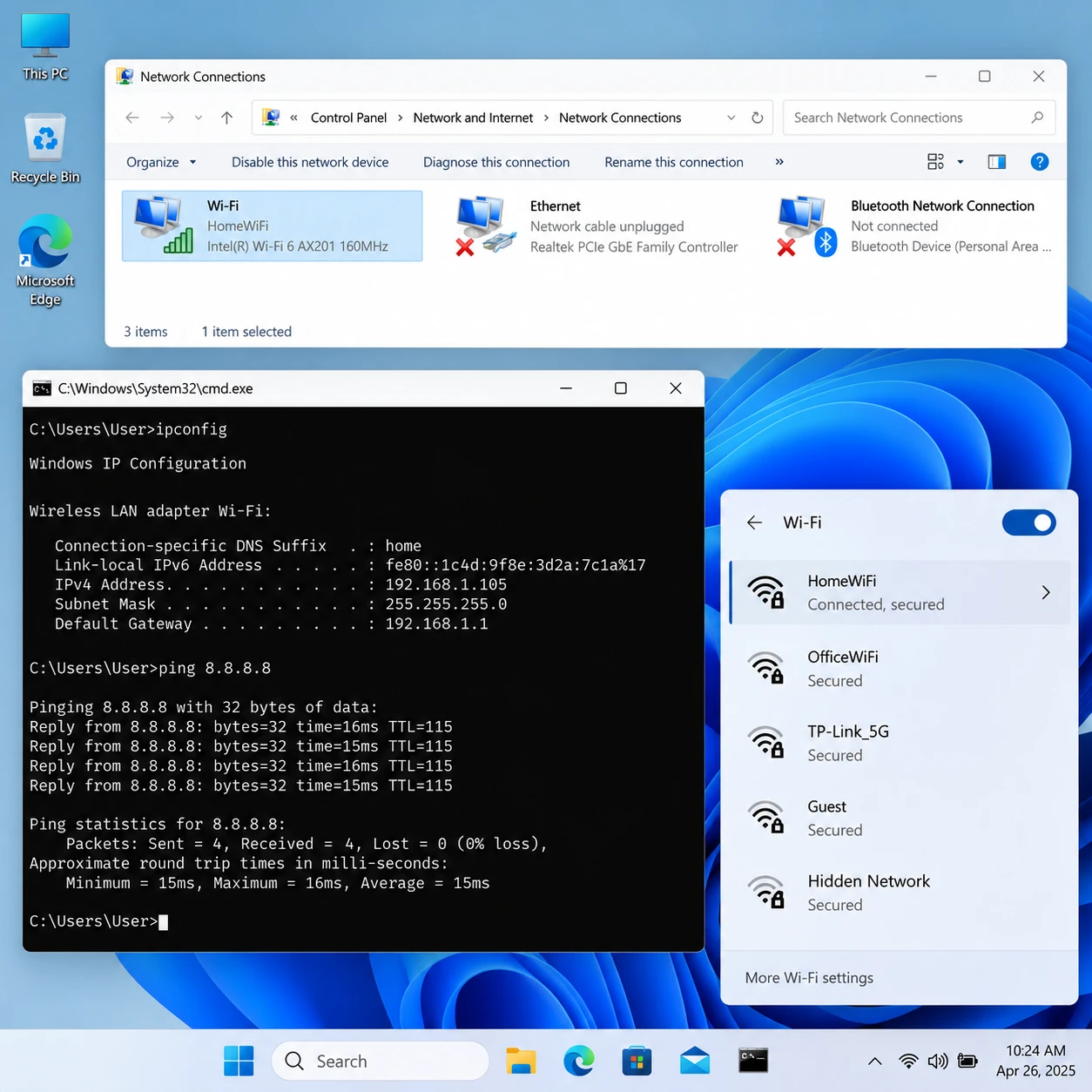
Windows system utilities can help you maintain a PC, inspect its network connection, and solve common configuration problems. The most useful topics connect a specific task, such as changing DNS settings or diagnosing unreliable Wi-Fi, with the right built-in tool or network configuration software.
Whether you are planning a how-to guide or trying to fix a computer, start by identifying what needs attention: the adapter, the IP configuration, name resolution, or the connection itself. That distinction makes troubleshooting more focused and reduces the risk of changing settings that were working correctly.
What Windows system utilities can help you manage
Windows system utilities help you manage devices, storage, security, performance, and network connections. Built-in tools are a sensible first stop; third-party utilities can make selected tasks easier but may add complexity.
For everyday system management, Windows includes tools such as Task Manager, Device Manager, Disk Management, and Settings. Task Manager shows running processes and resource use. Device Manager lists hardware, including network adapters, and can reveal a disabled device or driver issue. Settings brings together many everyday controls, while Disk Management handles partitions and drive letters.
For network work, the Settings app exposes Wi-Fi and Ethernet options, and the Control Panel still provides access to classic adapter controls. Windows Security includes firewall and protection settings. Command-line utilities such as ipconfig and ping offer quick ways to inspect network state and test reachability.
Third-party Windows system utilities may provide a more convenient interface for tasks such as managing saved network profiles or viewing adapter details. Before installing one, check its publisher, update history, permissions, and compatibility with your Windows version. A polished interface does not guarantee that a tool is safer or more accurate than Windows’ own controls.
A useful topic-selection framework is task, evidence, action: name the problem, show which tool can confirm it, then explain the safest next step. For example, a guide to a slow PC should distinguish high CPU use from low disk space rather than recommending a generic cleanup utility.
Network configuration basics in Windows
Windows network configuration determines how a computer connects to a local network and reaches other devices or websites. The core pieces are the network adapter, IP address, subnet, gateway, and DNS settings.
A network adapter is the hardware or virtual interface that connects Windows through Ethernet or Wi-Fi. Its settings show connection status and configuration details. An IP address identifies the device on a network; a subnet mask or prefix indicates which addresses belong to the local network; and the default gateway usually directs traffic beyond it.
TCP/IP configuration describes how Windows communicates across networks. On many home and workplace networks, a router or DHCP server assigns the IP address and related settings automatically. A manually configured static IP can be useful for some devices, but it must fit the network’s addressing plan. An incorrect address or gateway can break access to local resources or the internet.
DNS settings tell Windows which DNS resolver to ask when translating a domain name into an IP address. Automatic DNS is appropriate for many users. A manually selected resolver may suit a specific privacy, filtering, or troubleshooting need, but changing DNS does not fix every connection problem and can affect access to network-specific services.
IP address management means tracking which addresses are assigned, reserved, or configured manually so devices do not conflict. On a small home network, the router often handles this automatically. In a managed environment, follow the administrator’s plan rather than guessing at an available address. For official Windows guidance, see Microsoft’s Windows support resources.
Tools for diagnosing network problems
Windows network diagnostics help narrow a connection fault to the adapter, local network, internet route, or DNS resolution. Use a few targeted checks in sequence instead of changing several settings at once.
Start with visible indicators: confirm Wi-Fi is on, airplane mode is off, and the correct network is selected. Check whether other devices can connect to that network. If only one Windows PC has trouble, focus on its adapter, driver, or configuration; if several devices are affected, the router or service may be the cause.
- Settings and Network troubleshooter: review connection status and run the available Windows diagnostic for the affected connection.
- ipconfig: inspect the assigned IP address, gateway, and DNS information. The ipconfig /all command shows more adapter detail; ipconfig /release and ipconfig /renew can refresh a DHCP lease when appropriate.
- ping: test whether a host responds over the network. A response from the gateway but not an internet host can help isolate where the issue lies, though some hosts block ping.
- nslookup: check whether DNS can resolve a domain name. A failed lookup points toward name resolution, but does not by itself prove that DNS is the only issue.
- Windows Firewall: review whether a firewall rule or network profile could be blocking a specific app or connection. Avoid turning off the firewall as a routine test.
Results need context. A failed ping can reflect filtering rather than a broken connection, and a successful DNS lookup does not prove that a website is available. Record the exact error, affected network, and recent changes; these details make both self-troubleshooting and support requests more useful.
Common configuration tasks and troubleshooting
Common Windows network tasks include checking adapter settings, renewing an automatically assigned IP address, changing DNS, and resolving Wi-Fi connection failures. Make one change at a time, then test the same connection again.
Change DNS settings carefully
To change DNS, open the network adapter’s IP or DNS settings in Windows Settings, select manual DNS configuration, and enter the resolver addresses from a source you trust. The exact navigation can vary by Windows version. Note the original setting first; if DNS was automatic, restore automatic assignment if the change causes problems.
Test with more than one domain and check whether local services still work. If the computer is managed by an organization, DNS may be required for internal websites or authentication, so ask the network administrator before overriding it.
Address a Wi-Fi connection problem
For Wi-Fi troubleshooting, verify the password and network name, move closer to the router, and compare the connection with another device. Restarting the router can help when multiple devices lose access, but it may interrupt other users, so avoid doing it during a critical work session.
If the problem affects only one PC, toggle Wi-Fi off and on, check the adapter in Device Manager, and install driver updates from Windows Update or the PC or adapter manufacturer. Forgetting and reconnecting to a network may clear a stale profile, but make sure you know the password first.
Resetting the network stack or using Windows’ network reset can resolve persistent configuration faults. These actions may remove saved network details or reset adapters, so try simpler checks first and be ready to reconnect to Wi-Fi afterward. Avoid stacking fixes: several simultaneous changes make it harder to identify which one helped or caused a new issue.
Choosing network configuration software
Choose network configuration software based on the exact task, Windows compatibility, source reliability, and the level of control it requires. For basic checks, built-in Windows tools are often enough; additional software is useful when it provides a clear capability you actually need.
Before installing a utility, ask these questions:
- What task will it solve? Distinguish monitoring, adapter management, diagnostics, and automated configuration. A tool designed for one job may not be appropriate for another.
- Does it support your setup? Verify the Windows version, adapter type, and any required permissions. Managed PCs may restrict installation or settings changes.
- Can you verify the publisher? Download from the vendor’s official site or a trusted distribution channel. Review update dates and privacy details, especially if the utility collects device or network information.
- Can you undo its changes? Prefer software that documents settings, explains actions, and offers a clear rollback path.
Convenience has a trade-off: an all-in-one interface may save time, but it can obscure the Windows setting it changes or introduce another service that must be maintained. For a one-time DNS change, built-in controls may be simpler. For repeated diagnostics across multiple adapters, a reputable utility with transparent reporting could be worthwhile.
Safe practices when changing system or network settings
Safe changes begin with a record of the current configuration, a clear reason for the change, and a way to restore the original settings. This approach reduces downtime and helps you distinguish a real fix from a temporary coincidence.
Before adjusting TCP/IP configuration, DNS, firewall rules, or adapter properties, capture the current values or take screenshots. If the PC uses an automatic configuration, note that too. Create a restore point before major system changes when available, and ensure you have administrator permission for settings that affect the whole device.
Change one setting, then test the relevant task: reconnect to Wi-Fi, load a known website, or reach a local printer. If the result worsens, reverse that specific change before trying something else. For work or school devices, consult the administrator; local changes may conflict with VPN, security, or domain policies.
Common mistakes include setting a static IP without checking the router’s address range, changing DNS without recording the original mode, disabling Windows Firewall to test an app, and installing a utility from an unverified download site. Each can create a new problem or weaken security. Use the narrowest change that addresses the evidence, and restore protections and automatic settings when the test is complete.
Frequently asked questions
Windows includes several tools for viewing network settings and investigating connection faults. The right choice depends on whether you need to inspect configuration, test reachability, or change an adapter option.
Which Windows tools can show network settings?
Settings and the classic adapter properties show connection and configuration options. The ipconfig /all command displays detailed IP, gateway, and DNS information, while Device Manager shows network adapters and their status.
When might network configuration software be useful?
It may help when you manage several adapters, need repeated diagnostic reports, or want a more convenient view than Windows provides. Use it only if its features, publisher, and compatibility are clear; built-in tools are often sufficient for routine changes.
How can I troubleshoot a Windows connectivity problem?
Check whether other devices connect, confirm Wi-Fi or Ethernet status, inspect the adapter’s IP configuration, and test the gateway and DNS separately. Change one setting at a time, and note any error messages before resetting network components.
What should I check before changing DNS or IP settings?
Record the current configuration, confirm whether the network uses automatic DHCP, and check whether a router, VPN, or organization requires specific values. For a static IP, verify the address, subnet, gateway, and DNS against the network’s plan before applying it.